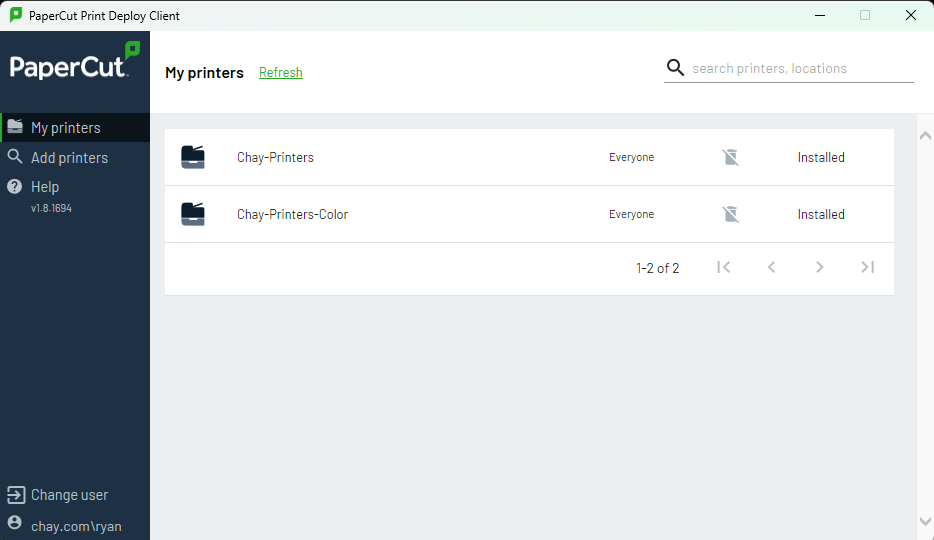
At Re/Max Hallmark, printing goes through a print queue (PaperCut). The queue does two things:
- Accountability - it records who uses printer supplies such as ink and paper.
- Print anywhere - you print to a single queue and release the job at any printer in the company.
Because of this, installing the printers on a computer takes a few extra steps.
¶ Install the PaperCut Print Deploy software
Download the PaperCut Print Deploy client for your kind of computer. These links only work inside the office network.
| Computer | Download |
|---|---|
| Windows | http://192.168.3.4:9191/print-deploy/client/windows |
| Mac OS | http://192.168.3.4:9191/print-deploy/client/macos |
| Chrome OS | http://192.168.3.4:9191/print-deploy/client/chrome |
-
Click the link; the download starts on its own.
-
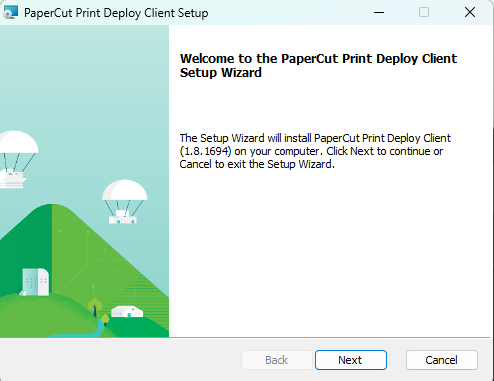
When it finishes, run the PC Print Deploy installer. The setup wizard opens.
-
Select Next.
-
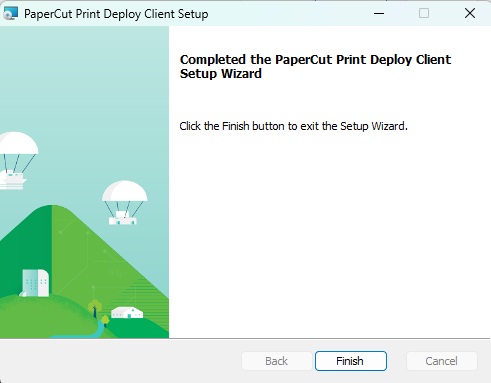
The installer runs. When it is complete, select Finish.
¶ Sign in and install the printers
Once the program is installed, sign in to PaperCut with your credentials.
-
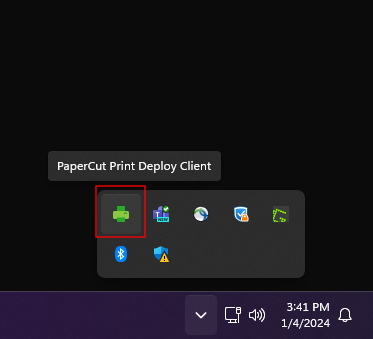
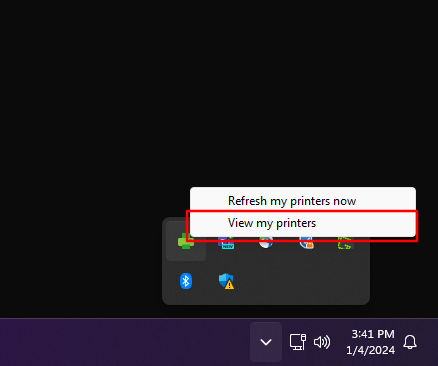
Select the arrow in the lower-right corner of the screen, next to the clock. This opens the System Tray.

-
Right-click the green printer icon for the PaperCut Print Deploy client.
-
Select View my Printers.
-
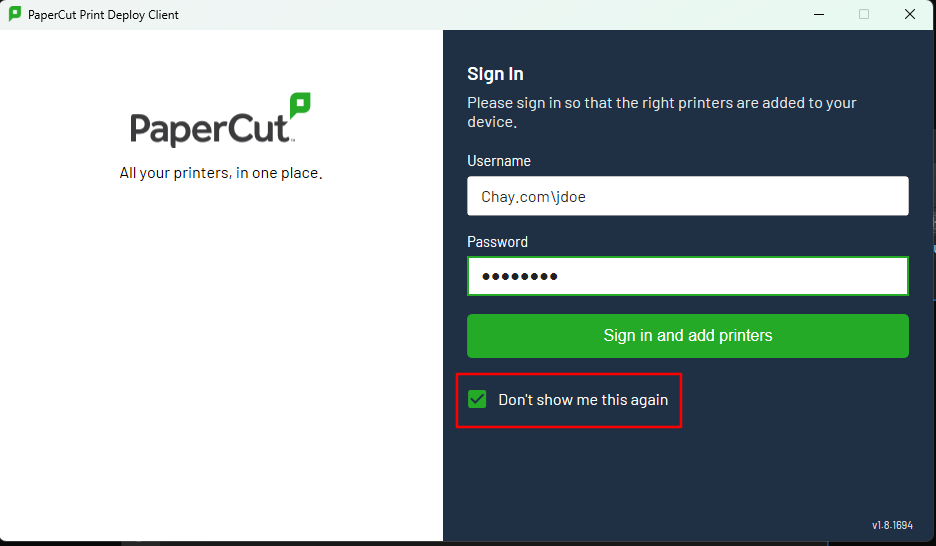
You are asked for a Username and Password.
The credentials are in the spreadsheet provided to reception and the office admins. They are the same ones used to sign in to a Bullpen Computer or a Client Room Computer.
If you are installing the printers for an Agent Administrator, use the Username and Password of the Team Leader/Agent.
-
Enter the username. It must begin with
chay.com\, for example:chay.com\JDoe -
Tick Don't show me this again.
-
Select Sign in and add printers.
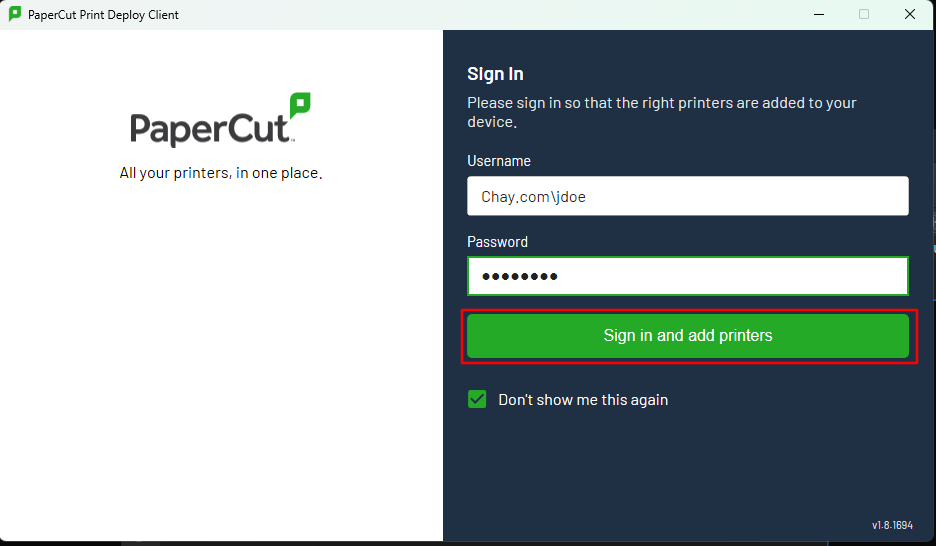
A list of printers appears. Wait a few moments and the printers install automatically. Once they are installed, close the PaperCut window and start printing.