At Re/Max Hallmark, printing goes through a print queue (PaperCut). The queue does three things:
- Accountability - it records who uses printer supplies such as ink and paper.
- Print anywhere - you print to a single queue and release the job at any printer in the company.
- Security - everyone prints with their own account, which keeps the network secure and means documents no longer sit on the printer for anyone to pick up.
Because of this, installing the printers on a computer takes a few extra steps.
¶ Install PaperCut Mobility Print
The Hallmark printers are installed with PaperCut Mobility Print.
-
Go to the address below and download the Mobility Print installer. It only works inside the office network.
-
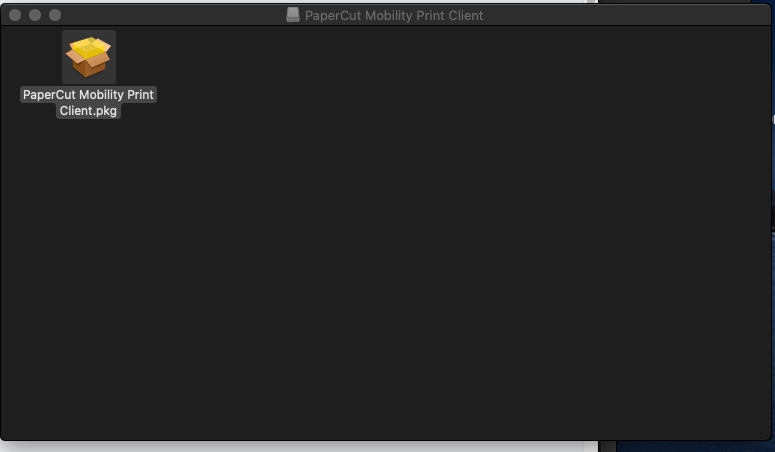
Open the downloaded file. A new window opens with another file in it.
-
Open PaperCut Mobility Print Client.pkg.
-
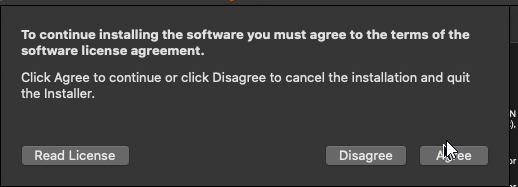
Continue through the installation. Accept the licence terms by selecting Continue,
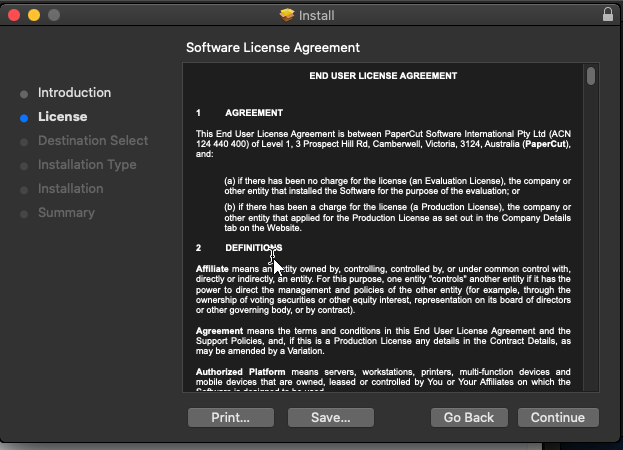
then Agree.
-
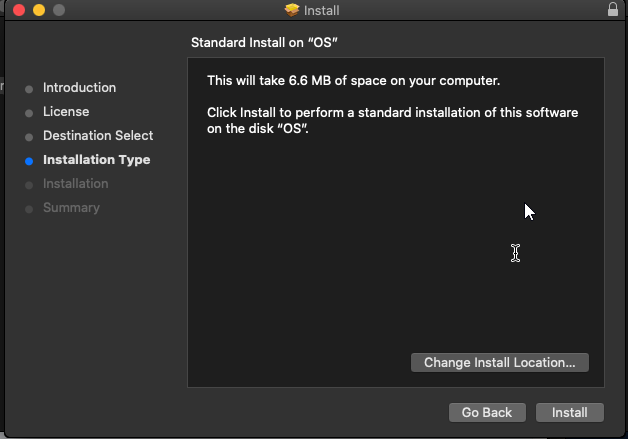
Select Install.
-
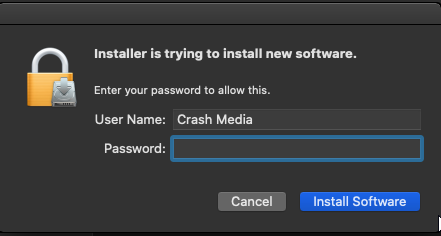
Enter your Mac password and select Install Software.
-
When it is complete, close the window and select Move to Trash.
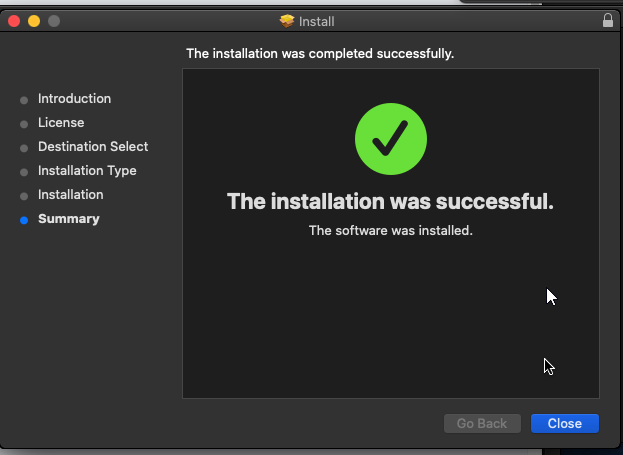
The printer is now installed, but it will not work until you finish the setup by printing something.
¶ Finish the setup with your first print
Attention: the printers default to 2-sided printing. Change this on your first print if you need to.
-
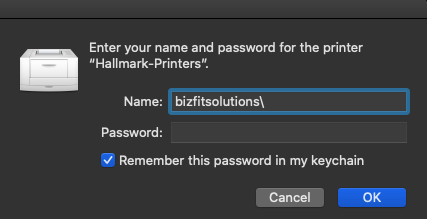
Print something. You are asked for a Username and Password.
The credentials are in the spreadsheet provided to reception and the office admins. They are the same ones used to sign in to a Bullpen Computer or a Client Room Computer.
If you are installing the printers for an Agent Administrator, use the Username and Password of the Team Leader/Agent.
-
Erase whatever is already in the Username box.
-
Enter the username. It must begin with
chay.com\, for example:chay.com\JDoe -
Enter the password, but do not press Enter yet.
-
Do not miss this step: tick Remember this password in my keychain, then continue.